
Ask Claude about your Falken data
Falken's Echelon connector lets Claude read your Falken data and answer questions about it in plain language. Connect it once from claude.ai, Claude Desktop, or Claude Code, sign in with your Falken account, and Claude can pull your scores, journal, rosters, calendars, and leaderboards straight from Falken. It reads. It never writes.
This guide covers what the connector can see, how to add it to Claude, what to ask, and how to switch it off.
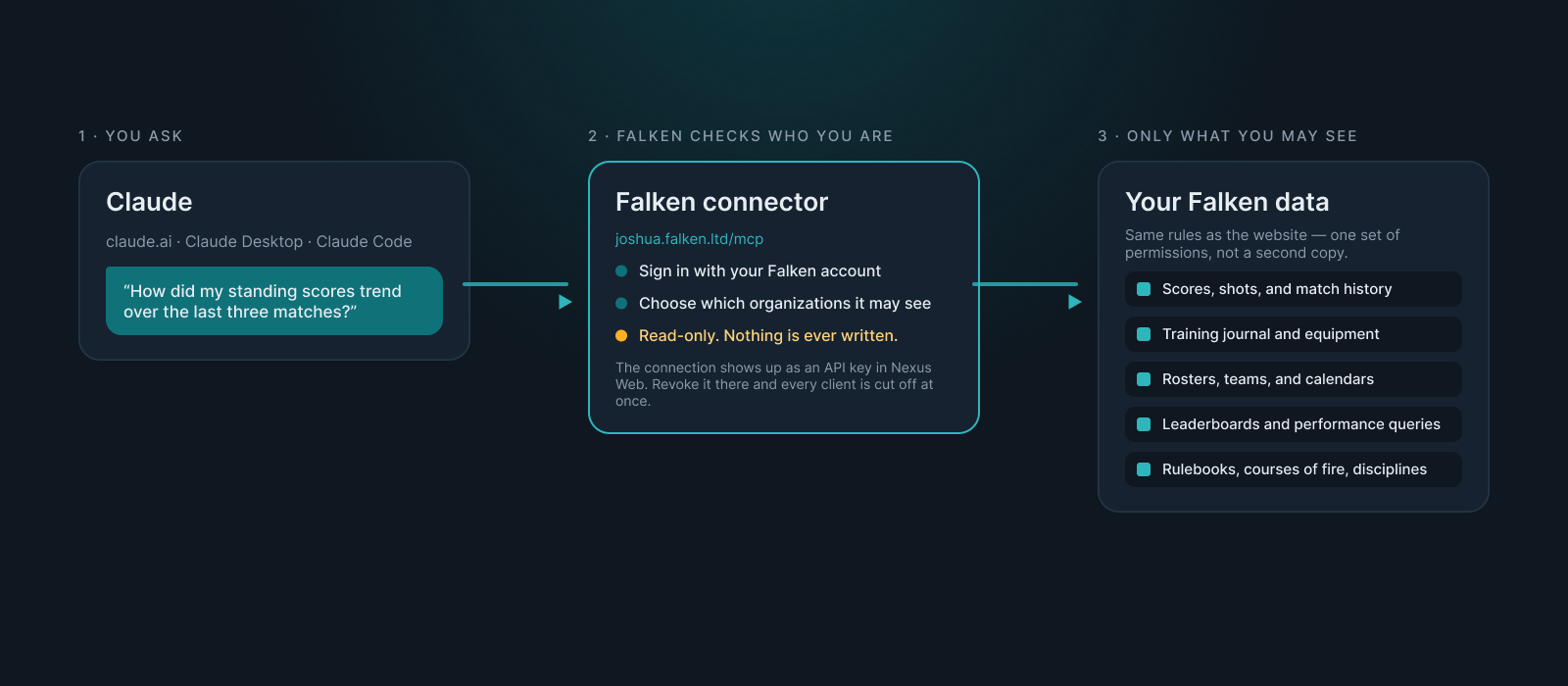
What the connector is
The connector is an MCP server, the open standard AI assistants use to reach outside tools. Falken hosts it at:
https://joshua.falken.ltd/mcp
It exposes 40 read-only tools over Falken's Echelon platform. Thirteen of them work without signing in and cover public information: published competitions, entries and results, relays, rulebooks, courses of fire, disciplines, organization news, and range weather. The rest need a Falken sign-in and follow the same permissions you have on the website.
Three things are true of every connection, whichever Claude app you use:
- Read-only, by policy. There is no tool that creates, edits, or deletes anything in Falken. The connector cannot enter you in a match, change a score, or post news, and a connection can never be upgraded to write access.
- Your permissions, not a second set. Every athlete-scoped read asks the same visibility rules the Falken website uses. If you cannot see it on the site, Claude cannot see it either.
- One switch to turn it off. Each connection appears as an API key in Nexus Web. Revoke the key and every Claude app using it is cut off immediately.
Connect from claude.ai or Claude Desktop
Claude Desktop and claude.ai share the same connector settings, so these steps work in both.
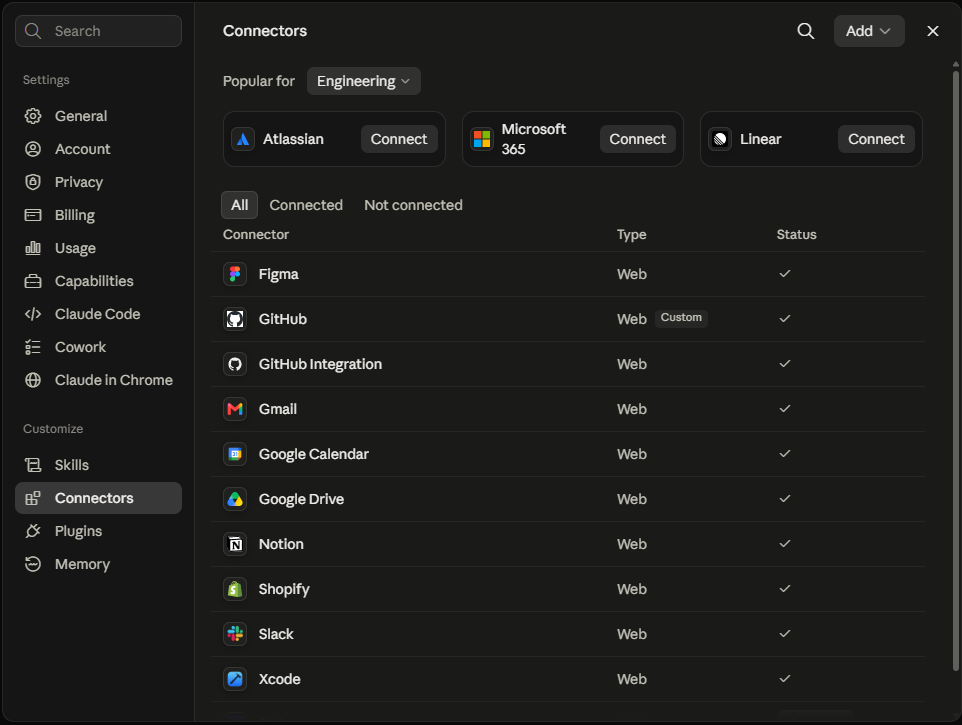
Open Settings, then Connectors. Use the Add menu at the top right and choose Add custom connector.
Name it Falken and paste the URL
https://joshua.falken.ltd/mcp. Click Continue.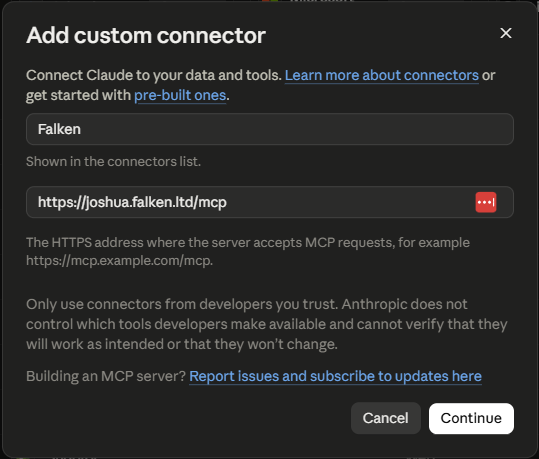
On the next page, leave Authentication on Always required and OAuth client on Use Anthropic's hosted client metadata. Falken supports that recommended option, so there is no client ID, secret, or header to enter. Claude may show None as detected because some Falken tools work without signing in; keep Always required so you get your own data, not just the public tools. Click Add.
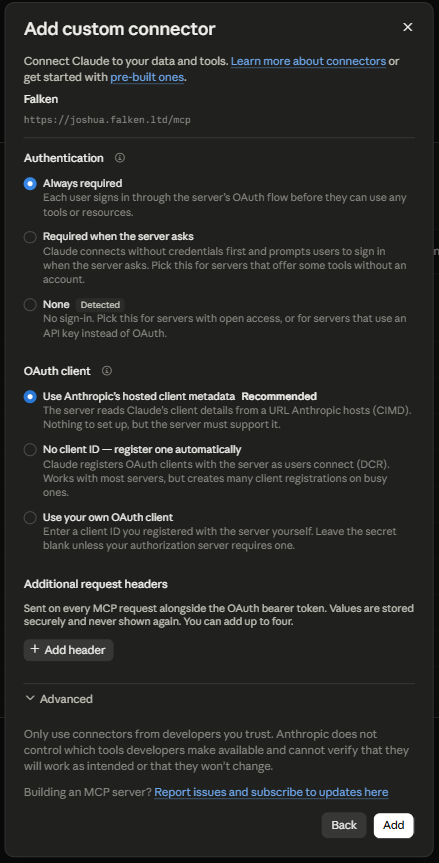
Claude now opens Falken's sign-in page. Use the same account you use for Nexus Web. On the consent page that follows, choose what the connection may see: all my organizations, or only the ones you tick. Approve.

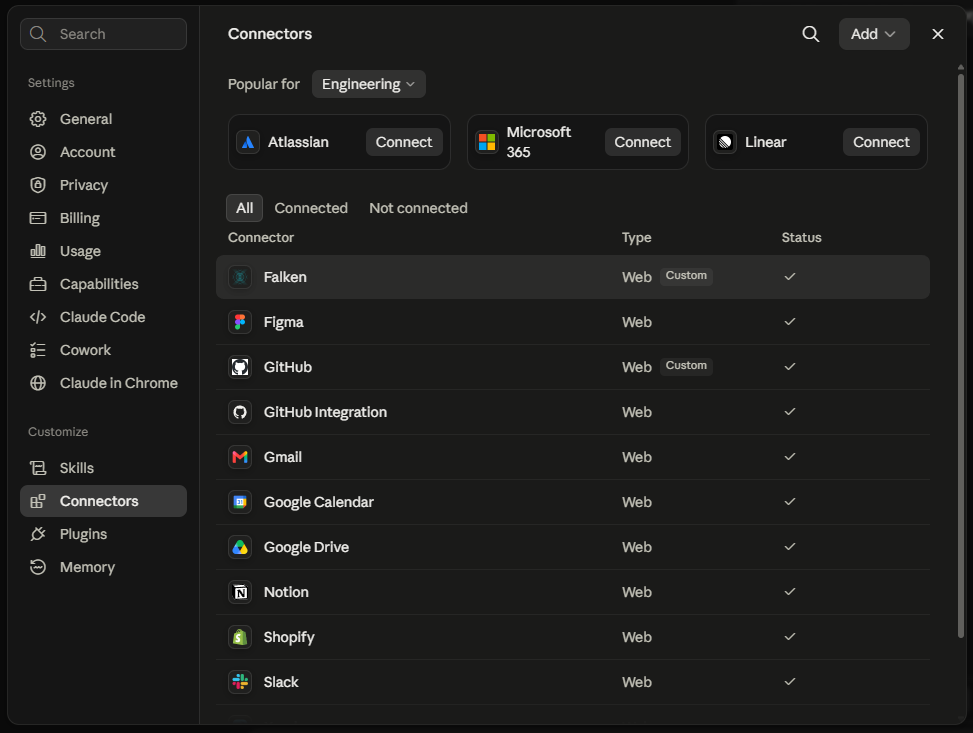
Back in Claude, Falken is listed under Connectors with a Custom badge and a check mark. In a new chat, open the tools menu and make sure Falken is enabled.
Ask something. Claude will say when it is using Falken to answer.

Connect from Claude Code
Claude Code can sign in the same way. Run:
claude mcp add --transport http falken https://joshua.falken.ltd/mcp
Then type /mcp inside Claude Code, pick falken, and choose Authenticate. Your browser opens the Falken sign-in and consent pages; approve, and the tools are available in every session.
If you would rather use a key than a browser sign-in (on a server, for example), create an API key in Nexus Web (next section) and pass it as a header:
claude mcp add --transport http falken https://joshua.falken.ltd/mcp --header "X-API-Key: fk_your_key_here"
Manage or revoke a connection
Every connection you approve is stored as an API key named after the app, for example Claude (OAuth) — September 2026. You will find it in Nexus Web under Account, Manage, API Keys.
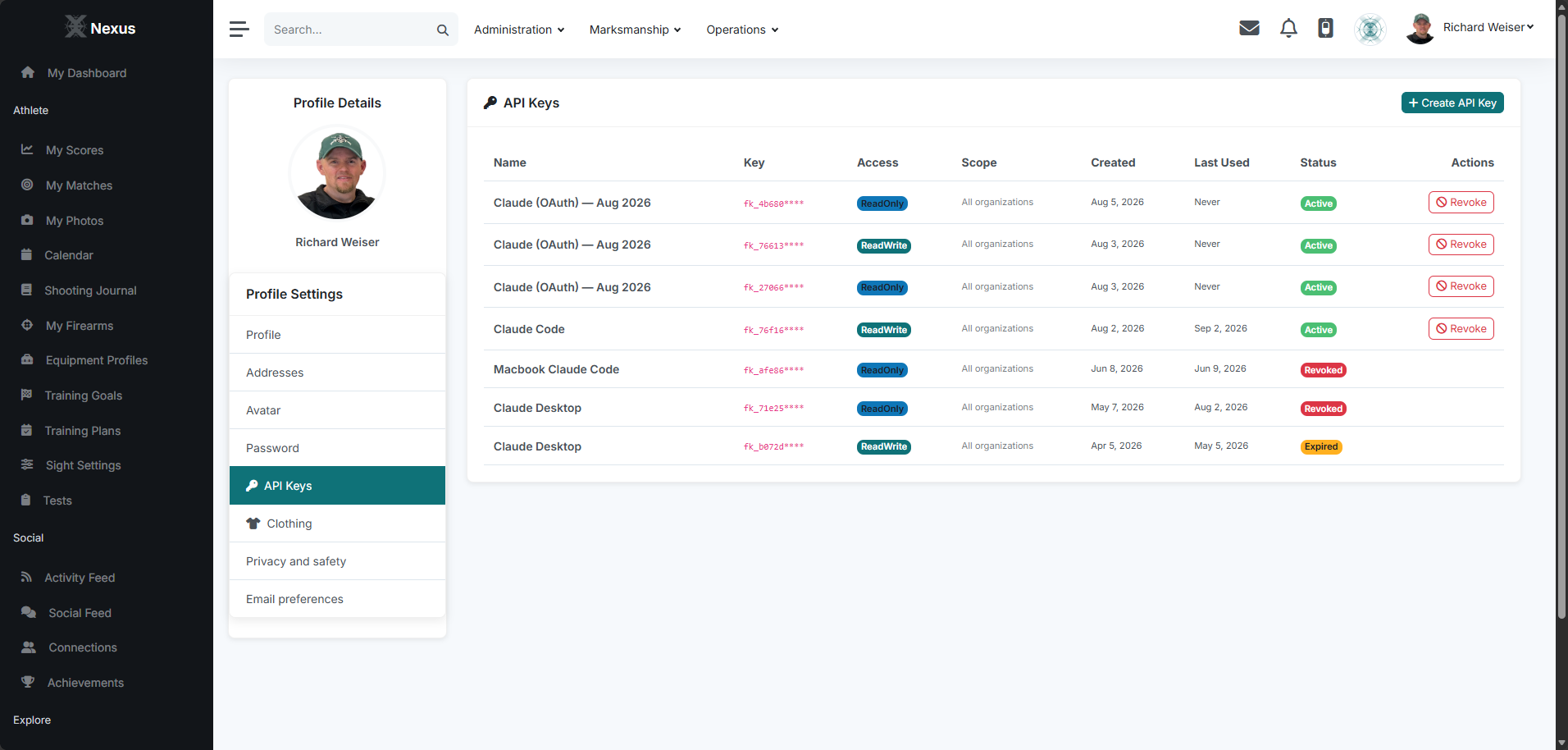
- Revoke cuts off that connection immediately. Claude's next request fails and it will ask you to connect again.
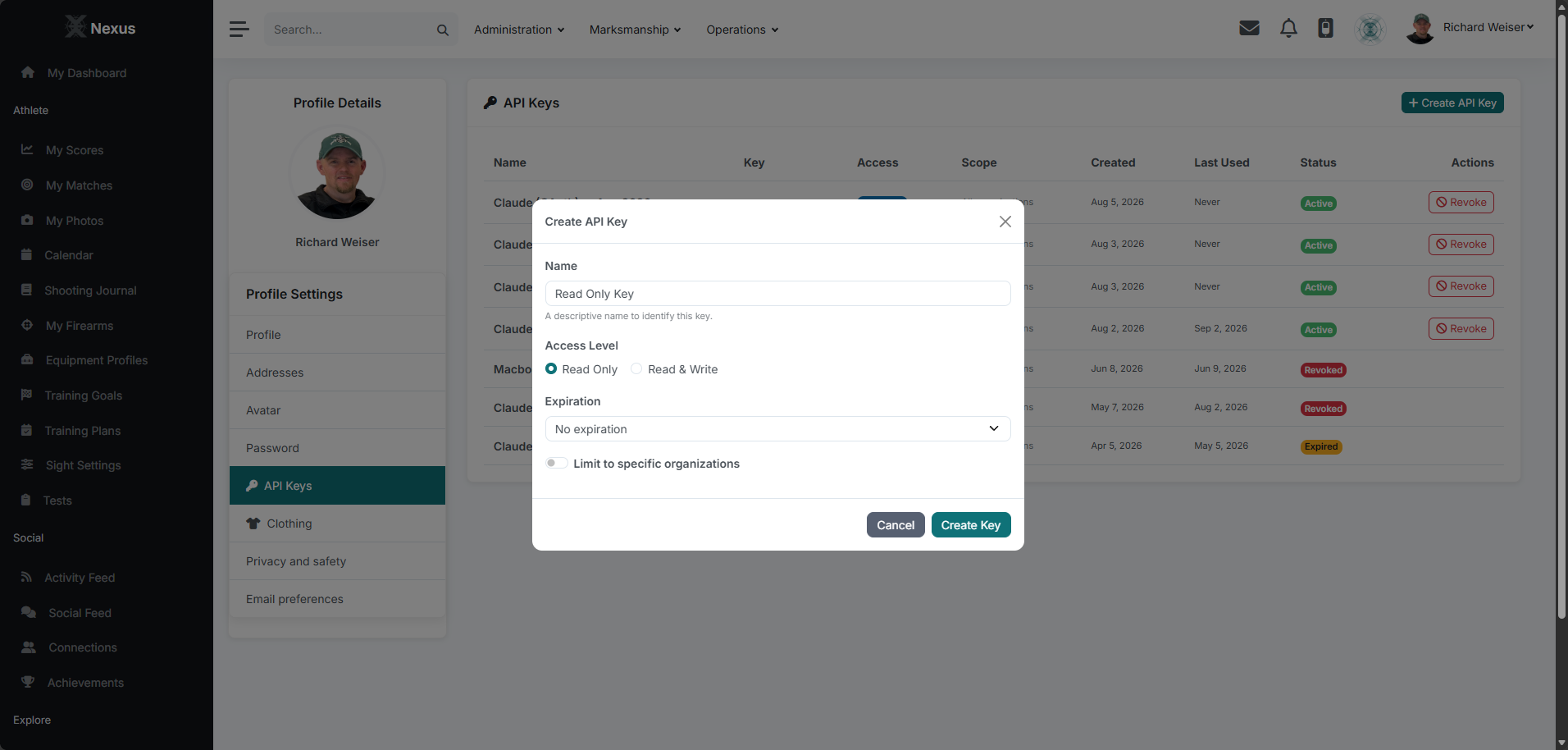
- Create makes a key for tools that take a header instead of a sign-in, such as Claude Code on a server. Choose read-only, give it a name you will recognise later, and optionally limit it to specific organizations. The key is shown once; copy it straight away.
A signed-in connection refreshes itself in the background for 30 days of use. After 30 days without use, or after you revoke the key, Claude asks you to connect again.
What to ask
The connector answers best when you name a match, an athlete, or a date range. Some starting points:
- "How did my standing scores trend over my last three matches?"
- "Show my inner tens by position this season."
- "Compare my kneeling averages before and after 1 August."
- "Which of my athletes improved most in prone since the last postal?"
- "What does the season leaderboard look like for our club?"
- "Who is on the varsity roster and which teams are they on?"
- "What is on the club calendar for next week?"
- "Summarise my journal entries from last month. What did I keep noting?"
- "What is the course of fire for a 3x20?"
- "What is the wind doing at the range this afternoon?"
Coaches with the right roles can ask across their roster; athletes can ask about themselves. Claude composes a query, Falken runs it with your permissions applied, and the answer comes back with the scope stated, so you can see what was included.
Who can see what
The connector reads athlete data through the same five-step check the website uses. It stops at the first step that grants access:
- Platform administrators, limited to the organizations their key is scoped to.
- The athlete, for their own data, whatever their privacy settings say.
- An active guardian of the athlete.
- A coach or staff member holding the right permission at an organization the athlete is currently on the roster of. Journals need View athlete journals, equipment needs View equipment, results need View all results, and profile details need View roster.
- The athlete's own privacy settings, for everyone else. A private profile shows nothing; a connections-only profile shows only to accepted connections.
When a read is refused, Claude is told so plainly, for example "This athlete's training journal is private. Only the athlete, their guardian, and coaches at their organization can read it." When you can see some of an athlete's profile but not all of it, the fields you are not cleared for are left out rather than shown blank.
If you limited a connection to specific organizations at consent, that limit sits on top of everything above. Revoke and reconnect if you need to change it.
Troubleshooting
"This athlete's journal is private." The check above did not find a step that grants you access. Ask the athlete, or a coach at their organization, rather than Claude.
Claude says it is not connected or asks me to sign in again. The connection was revoked in Nexus Web, or it went unused for 30 days. Reconnect from Claude's connector settings.
A list looks short. Athlete searches scan up to 500 athletes and say so when there may be more. Add a name or an organization to narrow the question.
Requests are being slowed down. A signed-in connection can make 300 requests a minute; an anonymous one 60. That is far more than a conversation needs, so this normally means Claude is retrying in a loop. Wait a minute and ask again.
I want to check what it can reach. Ask Claude to list the Falken tools it has. Tools you are not permitted to use are not offered at all, so the list is also a permission check.
Privacy notes
- Falken never sees your conversation with Claude. It sees only the specific read requests Claude makes, each carrying your credential.
- Anthropic receives whatever the tool returns, as part of your conversation, under Anthropic's own terms.
- Nothing about a connection is visible to other members of your organization. A coach cannot see that you connected, and you cannot see their connections.